
Gridzy.Gallery
जावास्क्रिप्ट लाइब्रेरी
सबसूं जबरो फोटू रो अनुभव म्हनैं मिल्यो है। सेवट कोई समझग्यो कै ओ काम कियां ठीक सूं करणो है!
मिलो पर्सिक - पुस्तकालय रो एक उपयोगकर्ता
त्वरित अंतर्दृष्टि
1 मिनट रो वीडियो ट्यूटोरियल
यो एक मिनट रै मांय सीख लो:
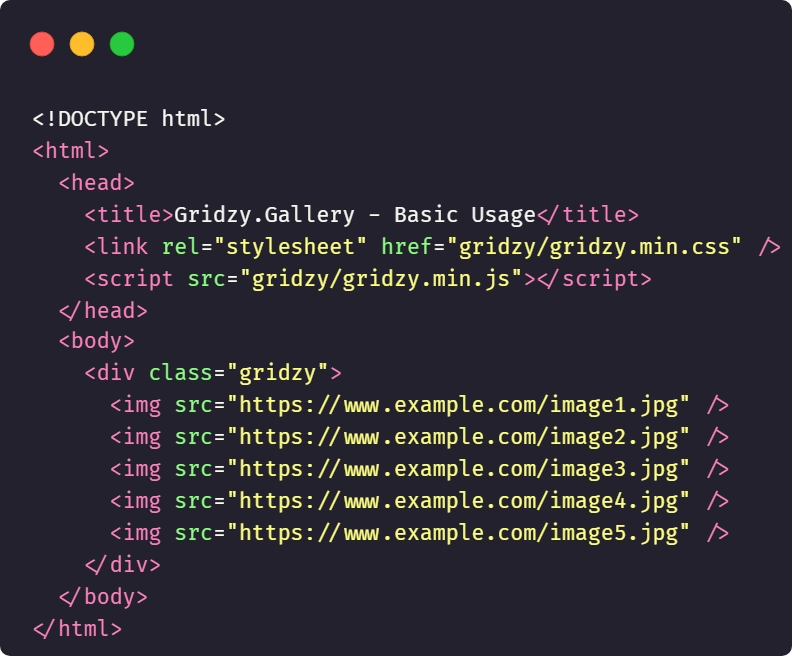
मूलभूत उपयोग
विन्यास
फिल्टर
दिखणो


कैप्शन री शैली
आसान त्वरित समाधान रै वास्तै पूर्वनिर्धारित कैप्शन शैली
विन्यस्त कैप्शन शैली नै देखबा रै वास्तै छवियां नै होवर करो। दिखाई गई अंतर्निहित शैली नै विन्यस्त करण रै वास्तै बटण अर रंग चुणबा आळा रै साथै खेलो।
टैग अर फिल्टर
थारी छवियां नै और संरचित तरीका सूं प्रदर्शित करण रै वास्तै
अंतर्निहित फिल्टर प्रणाली घणी लचीली है। ओ तथ्य कै सीएसएस चयनकर्तावां रो उपयोग छाणबा रै वास्तै करियो जावै है, वास्तव में लगभग हरेक प्रकार रा फ़िल्टर नै सक्षम बणावै है।


घणो संगत
कई लाइटबॉक्स रै साथै काम में लेवण जोग
गैलरी नै किणी भी लाइटबॉक्स रै साथै जोड़ो। इणरी संगत होवण री संभावना लगभग 100% है। एक उदाहरण रै रूप मांय फोटोस्वाइप लाइटबॉक्स नै देखबा रै वास्तै छवियां माथै क्लिक करो।


घणो लचीलो
अनुकूलित शैली बणाओ
जे थैं सीएसएस सूं परिचित हो तो थैं गैलरी री चीजां नै आपरी मनचाही ढाळै स्टाइल कर सको हो।
दिखायोड़ा उदाहरण रो सीएसएस:
/* CSS class: "gridzySkin-custom-sepia" */

@property --gridzySkin-custom-sepia--filter-sepia {
	initial-value: 1;
	inherits: true;
	syntax: "<number>";
}
@property --gridzySkin-custom-sepia--filter-contrast {
	initial-value: 1;
	inherits: true;
	syntax: "<number>";
}

.gridzySkin-custom-sepia > .gridzyItem {
	position: relative;
	overflow: unset;
	margin: -10px;
	border: 10px solid #fff;
	box-shadow: 1px 1px 5px rgba(0, 0, 0, .5);
	border-radius: 10px;
}

.gridzySkin-custom-sepia > .gridzyItem *:not(.gridzyCaption) {
	display: inline;
}

.gridzySkin-custom-sepia > .gridzyItem .gridzyCaption * {
	display: initial;
}

.gridzySkin-custom-sepia > .gridzyItem:nth-child(4n) {
	transform: rotate(-1deg);
}

.gridzySkin-custom-sepia > .gridzyItem:nth-child(4n+1) {
	transform: rotate(-.5deg);
}

.gridzySkin-custom-sepia > .gridzyItem:nth-child(4n+2) {
	transform: rotate(1deg);
}

.gridzySkin-custom-sepia > .gridzyItem:nth-child(4n+3) {
	transform: rotate(.5deg);
}

.gridzySkin-custom-sepia .gridzyImage {
	position: relative;
	vertical-align: middle;
	border-radius: 3px;

	--gridzySkin-custom-sepia--filter-sepia: 1;
	--gridzySkin-custom-sepia--filter-contrast: .7;
	filter: sepia(var(--gridzySkin-custom-sepia--filter-sepia)) contrast(var(--gridzySkin-custom-sepia--filter-contrast));
	transition: --gridzySkin-custom-sepia--filter-sepia .6s, --gridzySkin-custom-sepia--filter-contrast .6s;
}

.gridzySkin-custom-sepia > .gridzyItem:hover .gridzyImage {
	--gridzySkin-custom-sepia--filter-sepia: 0;
	--gridzySkin-custom-sepia--filter-contrast: 1;
}

.gridzySkin-custom-sepia .gridzyCaption {
	margin: 0;
	padding: .5em;
	position: absolute;
	z-index: 1;
	bottom: -.5em;
	top: auto;
	width: auto;
	max-width: calc(100% - 2em);
	height: fit-content;
	max-height: 100%;
	overflow: auto;
	box-sizing: border-box;
	background: rgba(238, 238, 238, .8);
	color: #000;
	box-shadow: 1px 1px 3px rgba(0, 0, 0, .3);
	opacity: 0;
	transition: opacity .3s;
}

.gridzySkin-custom-sepia > .gridzyItem:nth-child(3n) .gridzyCaption {
	transform: translateX(1000px) translateX(-50%) rotate(3deg);
}

.gridzySkin-custom-sepia > .gridzyItem:nth-child(3n+1) .gridzyCaption {
	transform: translateX(1000px) translateX(-50%) rotate(-3deg);
}

.gridzySkin-custom-sepia > .gridzyItem:nth-child(3n+2) .gridzyCaption {
	transform: translateX(1000px) translateX(-50%) rotate(-1deg);
}

.gridzySkin-custom-sepia > .gridzyItem:nth-child(5n) .gridzyCaption {
	left: calc(50% - 1000px);
}

.gridzySkin-custom-sepia > .gridzyItem:nth-child(5n+1) .gridzyCaption {
	left: calc(54% - 1000px);
}

.gridzySkin-custom-sepia > .gridzyItem:nth-child(5n+2) .gridzyCaption {
	left: calc(46% - 1000px);
}

.gridzySkin-custom-sepia > .gridzyItem:nth-child(5n+3) .gridzyCaption {
	left: calc(52% - 1000px);
}

.gridzySkin-custom-sepia > .gridzyItem:nth-child(5n+4) .gridzyCaption {
	left: calc(48% - 1000px);
}

.gridzySkin-custom-sepia > .gridzyItem:hover .gridzyCaption {
	opacity: 1;
}कोई भी एचटीएमएल रो प्रयोग करो
थै लगभग कोई भी HTML रो उपयोग कर सको हो। अठै घणी कम पाबंदियां है। अठै दिखायोड़ा उदाहरण दोनूं ई एक ई दृश्य परिणाम देवै है।
उदाहरण 1:
<ul class="gridzy gridzySkinClassic">
	<li>
		<a href="https://www.example.com/">
			<img class="gridzyImage" src="https://www.example.com/image1.jpg" />
			<span class="gridzyCaption">example caption 1</span>
		</a>
	</li>
	<li>
		<a href="https://www.example.com/">
			<img class="gridzyImage" src="https://www.example.com/image2.jpg" />
			<span class="gridzyCaption">example caption 2</span>
		</a>
	</li>
	...
</ul>
उदाहरण 2:
<section class="gridzy gridzySkinClassic">
	<figure>
		<img class="gridzyImage" src="https://www.example.com/image1.jpg" />
		<figcaption class="gridzyCaption">example caption 1</figcaption>
	</figure>
	<figure>
		<img class="gridzyImage" src="https://www.example.com/image2.jpg" />
		<figcaption class="gridzyCaption">example caption 2</figcaption>
	</figure>
	...
</section>
और भी उपयोगी विशेषतावां
आलसी लोडिंग
थारी देखी गई तस्वीरां नै तेजी सूं लोड करै है
इणसूं फगत वै ई छवियां लोड हुवै है जकी दृश्यमान क्षेत्र रै नैड़ै है। तो दिखाई देबा आळी छवियां रै वास्तै और बैंडविड्थ।
एपीआई
थानै और भी घणो काम करण री इजाजत देवै है
इणसूं थै प्रोग्रामेटिक रूप सूं छवियां जोड़ अर हटा सको, विकल्प बदल सको या घटनावां माथै प्रतिक्रिया कर सको।
विस्तार
थानै व्यक्तिगत परिदृश्यां रै वास्तै समाधान प्रदान करै है
ओ ब्लॉग लेखां रो एक संग्रह है जिको बगत रै साथै बढ़ै है अर इण मांय Gridzy.Gallery आसानी सूं विस्तारित करण सारू मददगार कोड स्निपेट है।
पुस्तकालय रै बारै में उपयोगकर्ता
चलो काम माथै लाग जावां!
योजनावां नै देखबा रै वास्तै बटण नै दबाओ!