
Gridzy.Gallery
जावास्क्रिप्ट लाइब्रेरी
यह अब तक का सबसे अद्भुत फोटो अनुभव है। आखिरकार कोई समझ गया कि यह कैसे सही तरीके से किया जाए!
मिलो पर्सिक - पुस्तकालय का एक उपयोगकर्ता
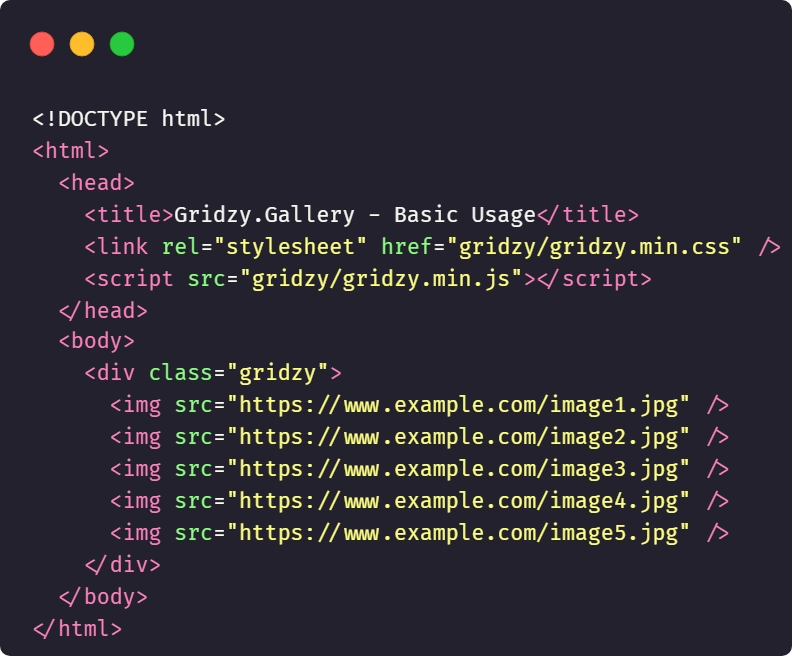
त्वरित अंतर्दृष्टि
1 मिनट का वीडियो ट्यूटोरियल
इसे बस एक मिनट में जानें:
मूल उपयोग
विन्यास
फिल्टर
उपस्थिति


कैप्शन शैलियाँ
आसान और त्वरित समाधान के लिए पूर्वनिर्धारित कैप्शन शैलियाँ
कॉन्फ़िगर किए गए कैप्शन स्टाइल को देखने के लिए छवियों पर होवर करें। दिखाए गए बिल्ट-इन स्टाइल को कॉन्फ़िगर करने के लिए बटन और कलर पिकर के साथ खेलें।
टैग और फ़िल्टर
अपनी छवियों को अधिक संरचित तरीके से प्रदर्शित करने के लिए
अंतर्निहित फ़िल्टर सिस्टम अत्यंत लचीला है। तथ्य यह है कि सीएसएस चयनकर्ताओं का उपयोग फ़िल्टरिंग के लिए किया जाता है, वास्तव में लगभग किसी भी प्रकार के फ़िल्टर को सक्षम करता है।


अत्यधिक संगत
कई लाइटबॉक्स के साथ प्रयोग करने योग्य
गैलरी को किसी भी लाइटबॉक्स के साथ संयोजित करें। इसके संगत होने की संभावना लगभग 100% है। उदाहरण के तौर पर फोटोस्वाइप लाइटबॉक्स को देखने के लिए छवियों पर क्लिक करें।


अत्यधिक लचीला
कस्टम शैलियाँ बनाएँ
यदि आप CSS से परिचित हैं, तो आप गैलरी आइटम को अपनी इच्छानुसार स्टाइल कर सकते हैं।
दिखाए गए उदाहरण का सीएसएस:
/* CSS class: "gridzySkin-custom-sepia" */

@property --gridzySkin-custom-sepia--filter-sepia {
	initial-value: 1;
	inherits: true;
	syntax: "<number>";
}
@property --gridzySkin-custom-sepia--filter-contrast {
	initial-value: 1;
	inherits: true;
	syntax: "<number>";
}

.gridzySkin-custom-sepia > .gridzyItem {
	position: relative;
	overflow: unset;
	margin: -10px;
	border: 10px solid #fff;
	box-shadow: 1px 1px 5px rgba(0, 0, 0, .5);
	border-radius: 10px;
}

.gridzySkin-custom-sepia > .gridzyItem *:not(.gridzyCaption) {
	display: inline;
}

.gridzySkin-custom-sepia > .gridzyItem .gridzyCaption * {
	display: initial;
}

.gridzySkin-custom-sepia > .gridzyItem:nth-child(4n) {
	transform: rotate(-1deg);
}

.gridzySkin-custom-sepia > .gridzyItem:nth-child(4n+1) {
	transform: rotate(-.5deg);
}

.gridzySkin-custom-sepia > .gridzyItem:nth-child(4n+2) {
	transform: rotate(1deg);
}

.gridzySkin-custom-sepia > .gridzyItem:nth-child(4n+3) {
	transform: rotate(.5deg);
}

.gridzySkin-custom-sepia .gridzyImage {
	position: relative;
	vertical-align: middle;
	border-radius: 3px;

	--gridzySkin-custom-sepia--filter-sepia: 1;
	--gridzySkin-custom-sepia--filter-contrast: .7;
	filter: sepia(var(--gridzySkin-custom-sepia--filter-sepia)) contrast(var(--gridzySkin-custom-sepia--filter-contrast));
	transition: --gridzySkin-custom-sepia--filter-sepia .6s, --gridzySkin-custom-sepia--filter-contrast .6s;
}

.gridzySkin-custom-sepia > .gridzyItem:hover .gridzyImage {
	--gridzySkin-custom-sepia--filter-sepia: 0;
	--gridzySkin-custom-sepia--filter-contrast: 1;
}

.gridzySkin-custom-sepia .gridzyCaption {
	margin: 0;
	padding: .5em;
	position: absolute;
	z-index: 1;
	bottom: -.5em;
	top: auto;
	width: auto;
	max-width: calc(100% - 2em);
	height: fit-content;
	max-height: 100%;
	overflow: auto;
	box-sizing: border-box;
	background: rgba(238, 238, 238, .8);
	color: #000;
	box-shadow: 1px 1px 3px rgba(0, 0, 0, .3);
	opacity: 0;
	transition: opacity .3s;
}

.gridzySkin-custom-sepia > .gridzyItem:nth-child(3n) .gridzyCaption {
	transform: translateX(1000px) translateX(-50%) rotate(3deg);
}

.gridzySkin-custom-sepia > .gridzyItem:nth-child(3n+1) .gridzyCaption {
	transform: translateX(1000px) translateX(-50%) rotate(-3deg);
}

.gridzySkin-custom-sepia > .gridzyItem:nth-child(3n+2) .gridzyCaption {
	transform: translateX(1000px) translateX(-50%) rotate(-1deg);
}

.gridzySkin-custom-sepia > .gridzyItem:nth-child(5n) .gridzyCaption {
	left: calc(50% - 1000px);
}

.gridzySkin-custom-sepia > .gridzyItem:nth-child(5n+1) .gridzyCaption {
	left: calc(54% - 1000px);
}

.gridzySkin-custom-sepia > .gridzyItem:nth-child(5n+2) .gridzyCaption {
	left: calc(46% - 1000px);
}

.gridzySkin-custom-sepia > .gridzyItem:nth-child(5n+3) .gridzyCaption {
	left: calc(52% - 1000px);
}

.gridzySkin-custom-sepia > .gridzyItem:nth-child(5n+4) .gridzyCaption {
	left: calc(48% - 1000px);
}

.gridzySkin-custom-sepia > .gridzyItem:hover .gridzyCaption {
	opacity: 1;
}किसी भी HTML का उपयोग करें
आप लगभग किसी भी HTML का उपयोग कर सकते हैं। इसमें बहुत कम प्रतिबंध हैं। यहाँ दिखाए गए दोनों उदाहरण एक ही दृश्य परिणाम देते हैं।
उदाहरण 1:
<ul class="gridzy gridzySkinClassic">
	<li>
		<a href="https://www.example.com/">
			<img class="gridzyImage" src="https://www.example.com/image1.jpg" />
			<span class="gridzyCaption">example caption 1</span>
		</a>
	</li>
	<li>
		<a href="https://www.example.com/">
			<img class="gridzyImage" src="https://www.example.com/image2.jpg" />
			<span class="gridzyCaption">example caption 2</span>
		</a>
	</li>
	...
</ul>
उदाहरण 2:
<section class="gridzy gridzySkinClassic">
	<figure>
		<img class="gridzyImage" src="https://www.example.com/image1.jpg" />
		<figcaption class="gridzyCaption">example caption 1</figcaption>
	</figure>
	<figure>
		<img class="gridzyImage" src="https://www.example.com/image2.jpg" />
		<figcaption class="gridzyCaption">example caption 2</figcaption>
	</figure>
	...
</section>
अधिक उपयोगी सुविधाएँ
लोड करते हुए आलस आना
आपके देखे गए चित्रों को तेजी से लोड करता है
यह केवल उन छवियों को लोड करता है जो दृश्य क्षेत्र के करीब हैं। इसलिए दृश्यमान छवियों के लिए अधिक बैंडविड्थ।
एपीआई
आपको और भी बहुत कुछ करने की अनुमति देता है
यह आपको प्रोग्रामेटिक रूप से चित्र जोड़ने और हटाने, विकल्प बदलने या घटनाओं पर प्रतिक्रिया करने की अनुमति देता है।
एक्सटेंशन
आपको अलग-अलग परिदृश्यों के लिए समाधान प्रदान करता है
यह ब्लॉग लेखों का एक संग्रह है जो समय के साथ बढ़ता है और इसमें Gridzy.Gallery आसानी से विस्तारित करने के लिए सहायक कोड स्निपेट होते हैं।
उपयोगकर्ता लाइब्रेरी के बारे में
चलो काम पर लगें!
योजनाओं की जांच करने के लिए बटन पर क्लिक करें!